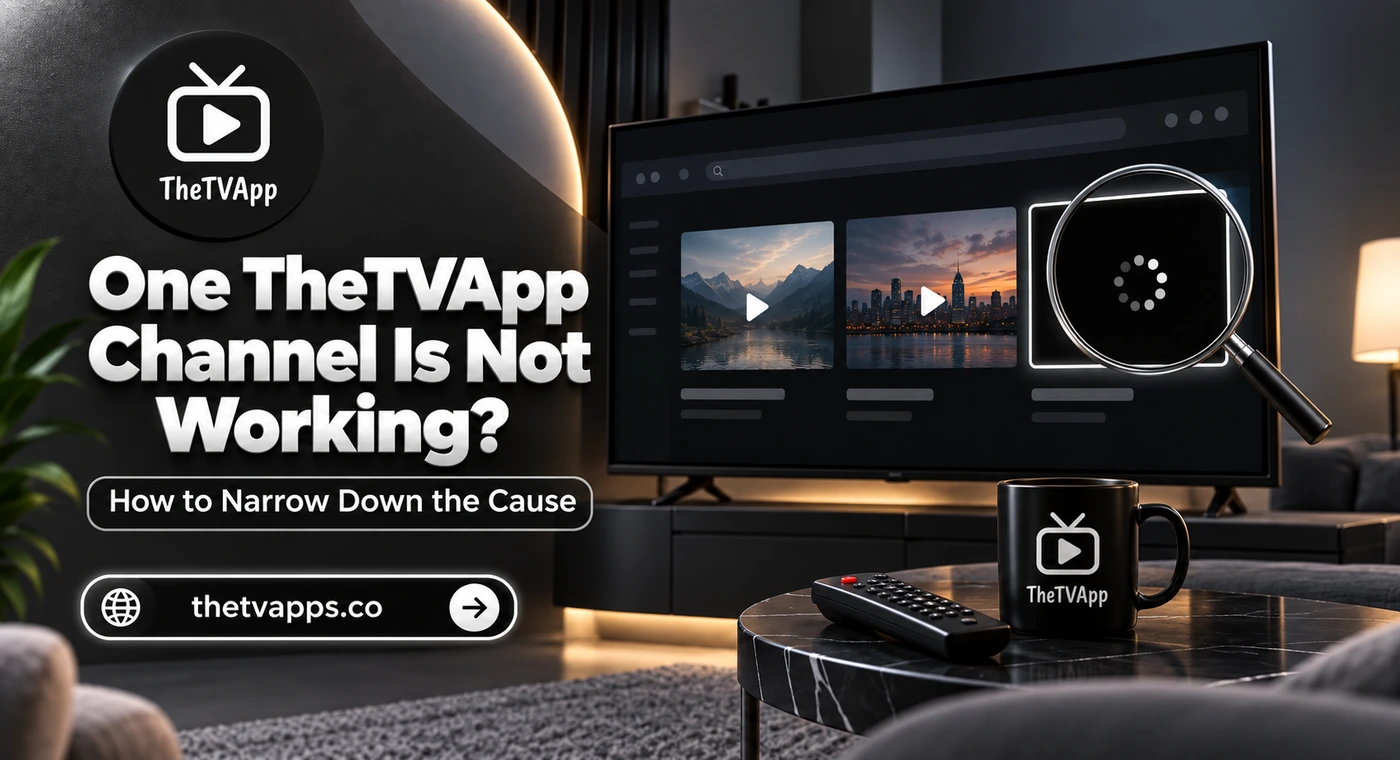
One TheTVApp Channel Is Not Working? How to Narrow Down the Cause
Your usual channel will not play, but the next one opens without trouble. Refreshing brings back the same loading circle, and you start wondering whether something changed on your device.
When one TheTVApp channel is not working, compare it with the channels that still play before changing browser or network settings. A working feed gives you useful evidence: your device can play at least some video through the current setup. The next step is to find out whether the failure follows that channel, one viewing link, or a particular device.
Confirm That the Problem Is Limited to One Channel
Test two other channels using the same browser and connection. Avoid opening several players at once; play them separately so the results are easier to interpret.
Compare Different Types of Content
If a sports channel fails, try a news or entertainment listing. You can browse the TheTVApp News page to locate a different category. A directory page loading successfully does not establish that its linked video works. Open the intended player and check whether both picture and sound appear.
| Comparison result | What to investigate next |
| Other channels play normally | The affected channel or source |
| Several channels from one category fail | Those sources and their playback behavior |
| Every player fails | Browser, connection, or broader service availability |
| The channel works on another device | The original device or browser |
| The same channel fails across devices | A source-side problem becomes more plausible |
These results narrow your investigation. They do not identify the exact cause.
Check the Channel, Not Just the Program
A channel showing a different program is not necessarily broken. The feed may belong to another region, follow a different schedule, or carry different programming from what you expected. Check the visible channel name and schedule before treating the mismatch as a playback failure.
Note Exactly What Happens in the Player
“Not working” can mean no response, a black picture, repeated buffering, or a missing page. Record the symptom before trying fixes.
Player Never Starts
Press play once and allow the player time to respond. Check whether controls appear and whether an error message replaces the video. If clicking opens another tab, return to the original page and see whether playback started there. Repeated clicking can leave several unrelated tabs open without resolving the failure.
Video Starts but Stops
If the channel plays briefly, note whether it buffers repeatedly or stops completely. Compare another feed for long enough to judge whether it remains stable. Different streams may require different amounts of data, so one working channel does not prove your connection can handle every other feed. It does, however, help you avoid assuming the entire service is unavailable.
Picture or Sound Is Missing
A moving picture without audio needs a different check from a black screen with commentary. Look at the player’s mute control for an audio problem. For missing video, compare the same channel in another browser. Do not change several settings together.
Check Whether the Broadcast Has Started
Event listings and continuously running channels do not always behave the same way.
Upcoming Events May Not Have an Active Feed
If you selected a game listing, confirm its scheduled start. A page can be available before the broadcast begins. Browse the TheTVApp Sports page for the relevant category, then check the event name and displayed time. US viewers should pay attention to time zones. An 8 p.m. Eastern start is 5 p.m. Pacific. A viewer expecting the event at 8 p.m. local time could arrive after much of it has finished.
A Finished Event May Leave an Inactive Listing
Do not assume an event page offers replay or catch-up viewing. A live feed may stop when the broadcast ends even if the listing remains visible. Look for a clearly identified replay option rather than expecting the live player to behave like an on-demand library.
Test the Same Channel in Another Browser
Use the same viewing link for this comparison. Changing the channel and browser at once makes it harder to understand the result.
When the Second Browser Works
Close and reopen the original browser, check for updates, and test again. If the channel still fails there, compare a private browsing session. Improvement gives you a reason to investigate extensions or stored site data separately. A private window does not reveal the exact cause or establish that the website is safe. Keep security protections enabled while testing.
When Both Browsers Fail
Move to another device if one is available. If the same feed fails there while other channels play, a problem with that source becomes more plausible. At that point, repeatedly clearing browser data is unlikely to provide much useful information.
Compare Another Device Without Changing the Feed
Keep the Test Consistent
Open the same channel on a phone or computer using the same network. If it plays on the phone but fails on a television, investigate the TV’s browser or viewing method. Displaying a channel list does not establish that the TV can play its video. Also identify whether you are using a browser, casting, or an installed TV app. Instructions for one setup may not apply to another.
Try Another Network Only When It Adds Information
A brief comparison using cellular data can help if the channel fails on home Wi-Fi across devices. If it works on cellular, the connection difference deserves attention. That result alone does not prove deliberate blocking by your internet provider. Keep mobile video tests short if your data allowance is limited.
An Alternative Feed May Help—If One Is Available
Some viewing services offer more than one source for a channel or event. Others do not.
Check the Options Actually Shown
If the service provides another authorized feed, test it once. Do not assume a source-switching feature exists because another website mentions it. For TVApp listings, note whether the option represents the same broadcast or a different channel. A working alternative may carry different commentary or programming.
Avoid Unfamiliar Replacement Links
Be cautious when an unavailable player leads to messages promising a “new working channel” through an unfamiliar download or domain. Similar branding does not establish that a replacement belongs to the same operator. Do not install an APK, extension, or purported player update simply to repair one feed.
When Further Device Changes Are Unnecessary
If the same channel fails across browsers and devices while other feeds remain usable, stop repeating local fixes. An unavailable source, interrupted broadcast, or changed listing could explain the result. Without reliable information from the relevant operator, those remain possibilities. Record the channel name, affected address, error message, and time with your time zone. Include which comparisons you made. A report such as “the TVApp channel fails on both my laptop and phone, but two other channels play” is more useful than “the website is broken.”
Frequently Asked Questions
Conclusion
When one TheTVApp channel fails, compare other feeds first, then test the same channel in another browser or device. Check the broadcast time and record the exact symptom. If the failure follows one source while everything else works, preserve your working settings. Further resets may offer little benefit until that feed becomes available again.