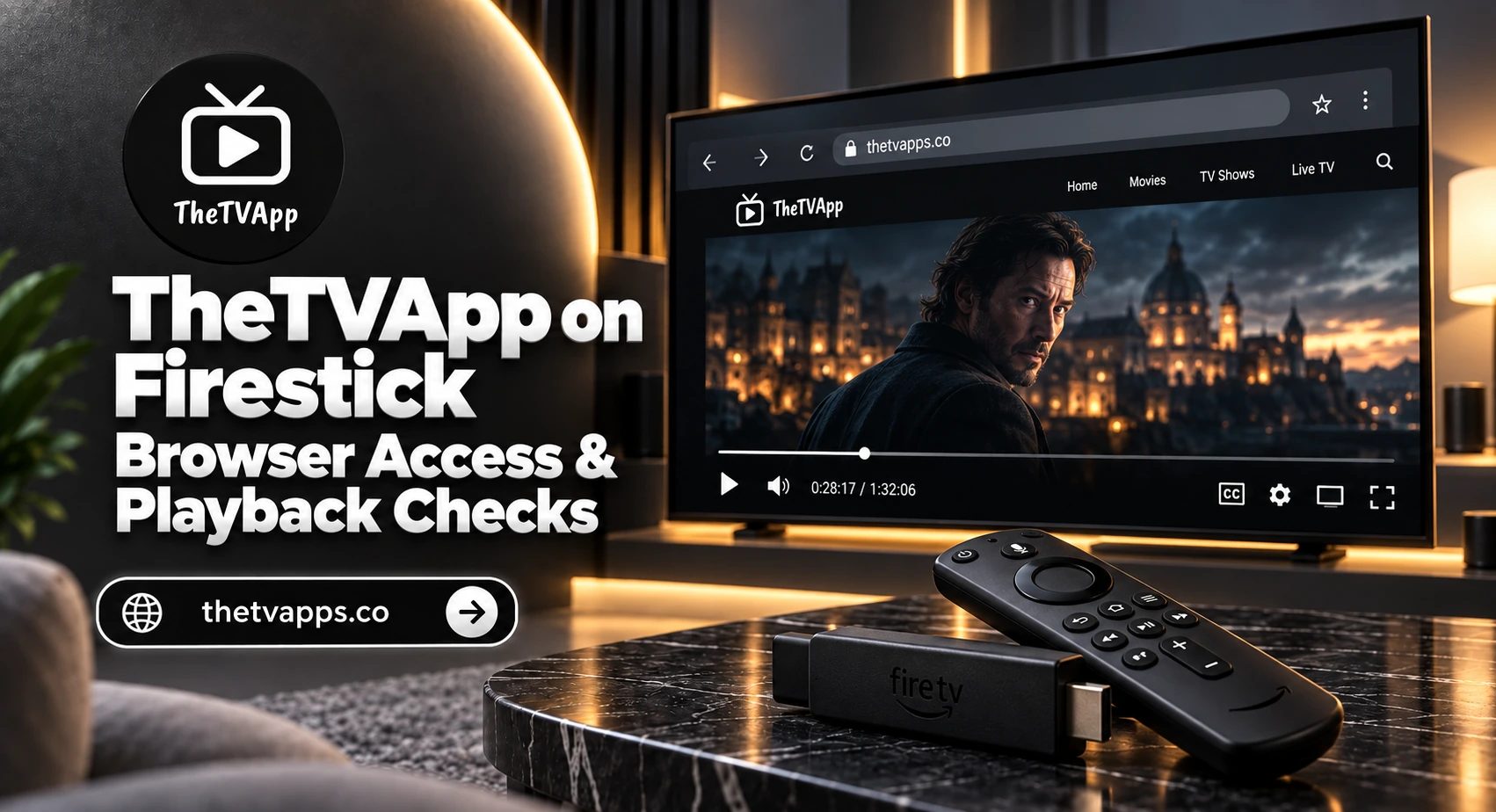
TheTVApp on Firestick – Browser Access & Playback Checks
You want the game on your television, but searching your Firestick for TheTVApp leaves you wondering which app to install. Browser access offers a different route: open a compatible browser, visit the intended website, and check whether its player works. That last step matters. TheTVApp on Firestick should not be treated as guaranteed compatibility with every channel or video source. A website may display correctly while its player fails to start, struggles with remote navigation, or stops during playback.
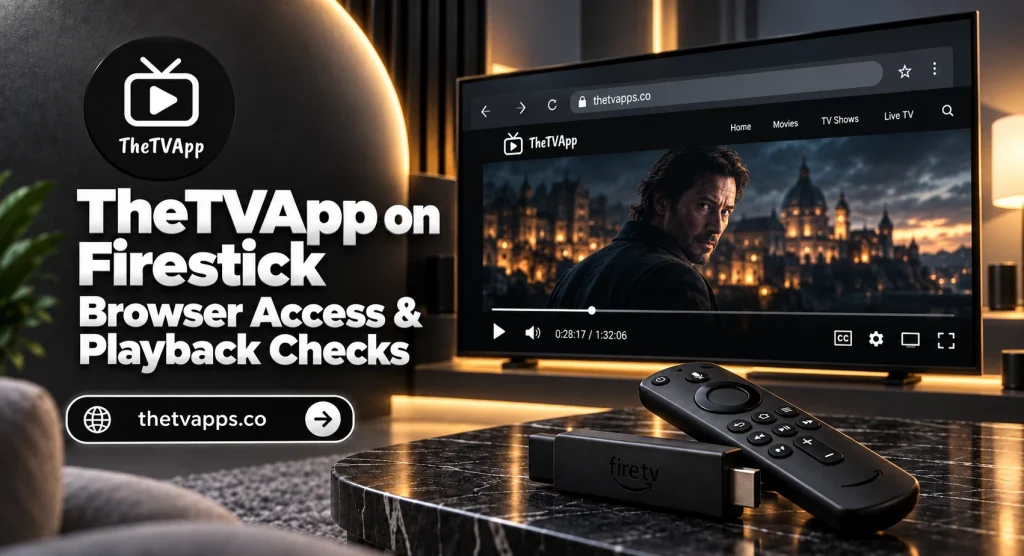
Can You Use TheTVApp Through a Firestick Browser?
Amazon Silk provides web browsing on compatible Fire TV devices. It can open websites and play supported web video, making it a reasonable browser to try. However, Silk’s video capabilities do not establish that a particular third-party stream will work.
Browser Access Is Different From Installing an App
Opening The TV App through Silk does not install a dedicated TheTVApp application. You are visiting a website within Amazon’s browser. This distinction avoids unnecessary setup. Browser viewing does not require an APK simply because the service’s name contains “app.” If you encounter an installation claim, verify the developer and source before downloading anything. Similar names and logos are not evidence of affiliation.
What You Need Before Starting
Have the following ready:
- A connected Firestick or compatible Fire TV device;
- Your Fire TV remote;
- Amazon Silk, where available;
- A working internet connection;
- The website address you intend to visit.
You do not need to change developer settings to use an ordinary browser installed through the Amazon Appstore.
How to Open TheTVApp on Firestick
Find or Install Amazon Silk
First, look through your installed applications. Silk may appear as Internet. If it is missing, use Fire TV’s search or Find option to search for Amazon Silk. Select the Amazon browser listing and choose the download option shown on your device. Menu labels can vary. If the browser is unavailable for your device or account, do not substitute an unfamiliar APK merely to complete these steps.
Enter the Website Address
Open Silk and select its address bar. Enter the intended address carefully using the on-screen keyboard. If you begin at thetvapps.co, notice where a viewing button takes you. An informational page and an external viewing destination can have different availability and controls. Check the address after navigation rather than assuming every page belongs to the same operator.
Select a Category and Test Playback
Browse the relevant category, such as the TheTVApp Sports page, then follow the intended viewing option. Use the remote to select the player’s play control once. Allow time for a response before clicking again. Confirm three things before settling in:
- The picture appears.
- Audio comes through the intended speakers.
- Playback continues beyond the first few seconds.
A channel listing opening successfully is only the first part of the test.
Navigate the Website With Your Remote
Websites designed for a mouse or touchscreen can feel awkward on a television.
Move the Cursor Deliberately
Use the remote’s directional controls to position the cursor and its center button to select an item. Small buttons may require careful positioning. If clicking opens another page or tab, check where you landed before continuing. Avoid repeated selections while the page is still responding. They can make navigation harder to follow.
Compare Desktop and Default Layouts
Silk offers layout options that may change how a website appears. If controls are cut off or difficult to reach, compare the available desktop and default site views. A different layout may improve navigation, but it cannot guarantee video playback or repair an unavailable feed. Return to the previous view if the change makes the page harder to use.
Bookmark the Page After Checking It
Typing a long address with a remote is inconvenient. Once you have confirmed the page you want, use Silk’s bookmark option to save it.
Choose the Page You Actually Need
Consider bookmarking a useful category rather than a temporary event link. A game-specific page may have little value after the broadcast ends. For regular news viewing, the TheTVApp News page offers a category you can return to. Review saved addresses occasionally. A bookmark does not confirm that a page remains available or that its destination has stayed the same.
The Website Opens, but the Video Does Not
Compare Another Channel
Try another available channel in the same browser. If it plays, investigate the failing source before changing Fire TV settings. For live events, check the start time and time zone. A listing may appear before its broadcast begins. Do not assume a player needs a download because it stays blank.
Compare the Same Feed on a Phone
Open the exact same viewing page on a phone or computer, ideally using the same Wi-Fi.
| Result | Useful next step |
| Feed works on the phone but fails in Silk | Investigate Fire TV browser compatibility |
| Feed fails on both devices | Check the source and event availability |
| Other channels work in Silk | Focus on the affected channel |
| Silk struggles with unrelated websites too | Investigate the browser or device |
Keep the comparison consistent. Testing a different channel on your phone tells you less about the original failure.
Playback Buffers or Stops on Firestick
Check the Connection at the Television
A phone beside the router does not show how reliably your Firestick receives Wi-Fi behind the TV. Pause large downloads elsewhere in the household. If the player offers a lower resolution, test it and watch whether interruptions decrease. Compare another video application on the Firestick. Problems across services make the device or connection more relevant; one failing feed points you elsewhere.
Restart When the Device Is Also Unresponsive
If Silk freezes or navigation stops responding, restart Fire TV through its settings. Depending on the device, the relevant section may be labeled My Fire TV or Device & Software. A restart is a useful check for an unresponsive device. Repeating it will not restore a source that is unavailable across devices.
Clear Silk’s Cache Carefully
Consider browser cleanup when Silk itself behaves poorly, especially after simpler checks.
Separate Cache From App Data
Fire TV’s application settings provide options for managing installed apps. Find Silk there and read the available cleanup choices. Start with cache where appropriate. Clearing app data is a broader action and may remove browser preferences or stored information. Do not confuse clearing Silk’s data with resetting the entire Firestick.
Test Once After Cleanup
Reopen the browser and revisit the affected page. Note whether navigation or playback changed. If TVApp still fails while other websites and videos work, repeating the cleanup is unlikely to add useful evidence.
Frequently Asked Questions
Conclusion
To try TheTVApp on Firestick, start with Amazon Silk, verify the address, and test the player before making broader changes. Compare another channel and the same feed on another device when playback fails. Browser access can provide a convenient route to supported web video, but actual results depend on the device, browser, connection, and selected source.