TheTVApp on iPhone and iPad – Safari Viewing Guide
Opening a channel on your iPhone should be straightforward. The frustrating part usually comes afterward: the player stays small, sound comes through your earbuds instead of the speaker, or the video stops when you switch apps. For TheTVApp on iPhone and iPad, start with Safari and test the actual player. Browser access avoids an unnecessary download, but whether a particular feed plays depends on its source, the player, and your device’s software.
Open the Website in Safari
Type the intended address into Safari’s address bar. If someone sent you a link inside a messaging or social app, opening it directly in Safari gives you access to the browser’s normal controls.
Choose Your Content and Check the Destination
You can browse the TheTVApp Sports page for sports categories or the movies and entertainment page for other viewing options. Pay attention to the address after selecting a viewing button. If it opens an external website, that destination provides the player and determines which features are available. Tap the player’s play control once. Wait for the picture and sound before entering full screen. This makes it easier to spot whether playback works normally or fails only after changing the view.
You Do Not Need an APK for Safari
An Android APK is not an iPhone application. It is also unnecessary for ordinary browser viewing. If you find an App Store listing with a similar name, check its developer and connection to the service before installing it. A matching logo alone does not verify that relationship.
Make the Video Comfortable to Watch
A working stream can still be awkward on a small screen. Start with the controls the player actually provides.
Full Screen and Landscape Viewing
Tap the video to reveal its controls, then select full screen if available. Turn the device sideways for a wider view. If your iPhone stays upright, check Portrait Orientation Lock in Control Center. On iPad, check the rotation-lock control. Some pages or players may still limit how they display video. A useful comparison is whether Safari rotates on another page. If it does, investigate the player’s layout before assuming something is wrong with the device.
Check Sound While the Video Is Playing
Use the volume buttons during playback so you can assess the media volume. Also look for a muted speaker icon inside the player. If the picture moves but you hear nothing, check the selected audio output. Connected earbuds or a Bluetooth speaker may still be receiving the sound. For example, putting earbuds down does not necessarily disconnect them. The phone can keep sending commentary to them while its own speaker stays silent.
Save the Page for Next Time
Once you have checked the address, a bookmark saves you from searching through similarly named websites again. Safari lets you save pages as bookmarks or place a website icon on the Home Screen. The menu position varies with the Safari layout and software version.
Add a Home Screen Shortcut
On iPhone:
- Open the page in Safari.
- Open the Share menu, either directly or through the page menu.
- Choose Add to Home Screen.
- Review the name and tap Add.
If the option is hidden, check Edit Actions in the Share menu. The icon provides convenient access to the website. It does not establish that you installed a verified native application or make an incompatible player work. Bookmark a useful category page rather than a temporary event link if you plan to return regularly.
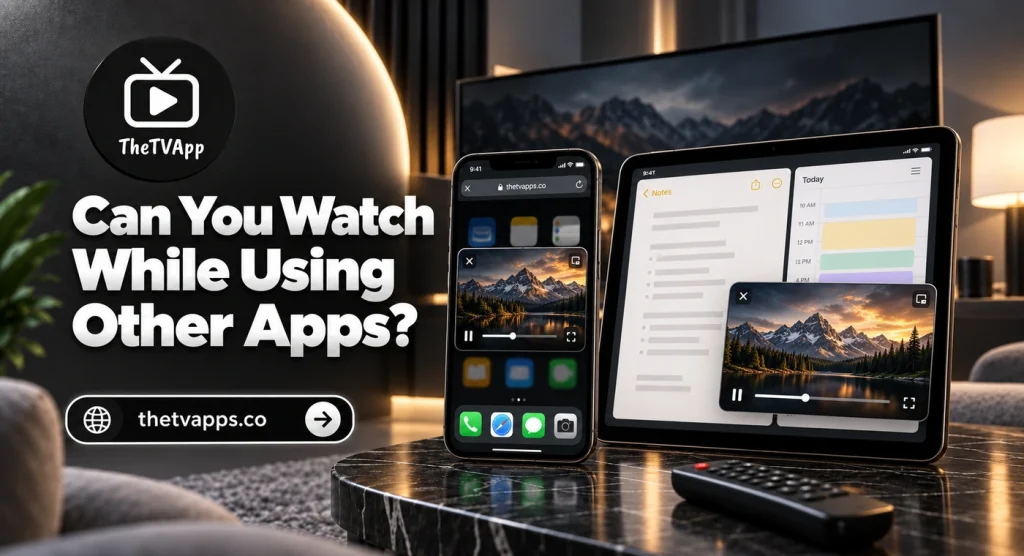
Can You Watch While Using Other Apps?
Picture in Picture can keep supported video in a small floating window while you use another app. Availability depends on the video and player.
Try Picture in Picture Only When Supported
Look for the minimize-video or Picture in Picture control during playback. If available, select it and check whether the video continues. If the option is missing or playback stops, the selected player may not support that behavior. Adding the website to your Home Screen does not guarantee background playback. Keep the video visible in Safari if that is the only reliable method for the selected stream.
Test Before a Live Event
Do a quick playback check before the program starts: sound, landscape view, and any multitasking feature you want to use. Also check the event’s time zone. A listing showing 8 p.m. Eastern corresponds to 5 p.m. Pacific. An upcoming event page may be visible before its live feed begins.
When The TV App Will Not Play in Safari
The most useful next step depends on whether the website itself fails or only its video.
| What happens | Start here |
|---|---|
| The entire page will not open | Compare another website and connection |
| Page opens, but the player stays blank | Try another channel on the same device |
| Video repeatedly pauses | Compare playback on another service |
| Sound plays without a picture | Test another feed and exit full screen |
| Video stops when switching apps | Check whether the player supports Picture in Picture |
The broader TheTVApp troubleshooting article covers website, browser, and individual-stream failures in more detail.
If Safari Cannot Load the Page
Reload once, then check another website. If several pages fail, compare Wi-Fi with cellular data where available. Keep any mobile video test brief if your plan has a data limit. Restart the device if Safari remains unresponsive. If you already use a VPN, review whether it affects access rather than assuming another VPN will solve the problem.
If the Page Opens but the Player Stays Blank
Test another channel before changing settings. One unavailable feed does not establish that Safari is incompatible with the entire service. If you previously disabled JavaScript, check Settings → Apps → Safari → Advanced. On older software, Safari may appear directly in Settings. Review any relevant browser extension individually. Keep security protections enabled and restore changes that make no difference.
Leave Website-Data Deletion Until Later
Clearing stored website data can help with some browser problems, but it should follow simpler comparisons. Safari’s website-data controls are under Settings → Apps → Safari → Advanced → Website Data on recent software. Read the removal options carefully: deleting data can remove website preferences and stored sign-in information. There is little value repeating the cleanup when only one feed fails across several devices.
What Is Different on iPad?
The larger screen gives you more room for schedules and player controls, but it does not guarantee better stream compatibility. If a page opens in a cramped or awkward layout, check Safari’s available website-view options. Changing the layout may make buttons easier to reach; it cannot restore an unavailable source. When comparing TVApp on an iPhone and iPad, use the same feed and connection. Different channels can produce different results even when both devices work correctly.
Frequently Asked Questions
Conclusion
Start with Safari, check the viewing address, and confirm picture and sound before adjusting the display. Once playback works, save the page and test any full-screen or Picture in Picture features you need. If a problem appears, follow the symptom. A single unavailable feed, a muted player, and a page that will not open each call for different checks.