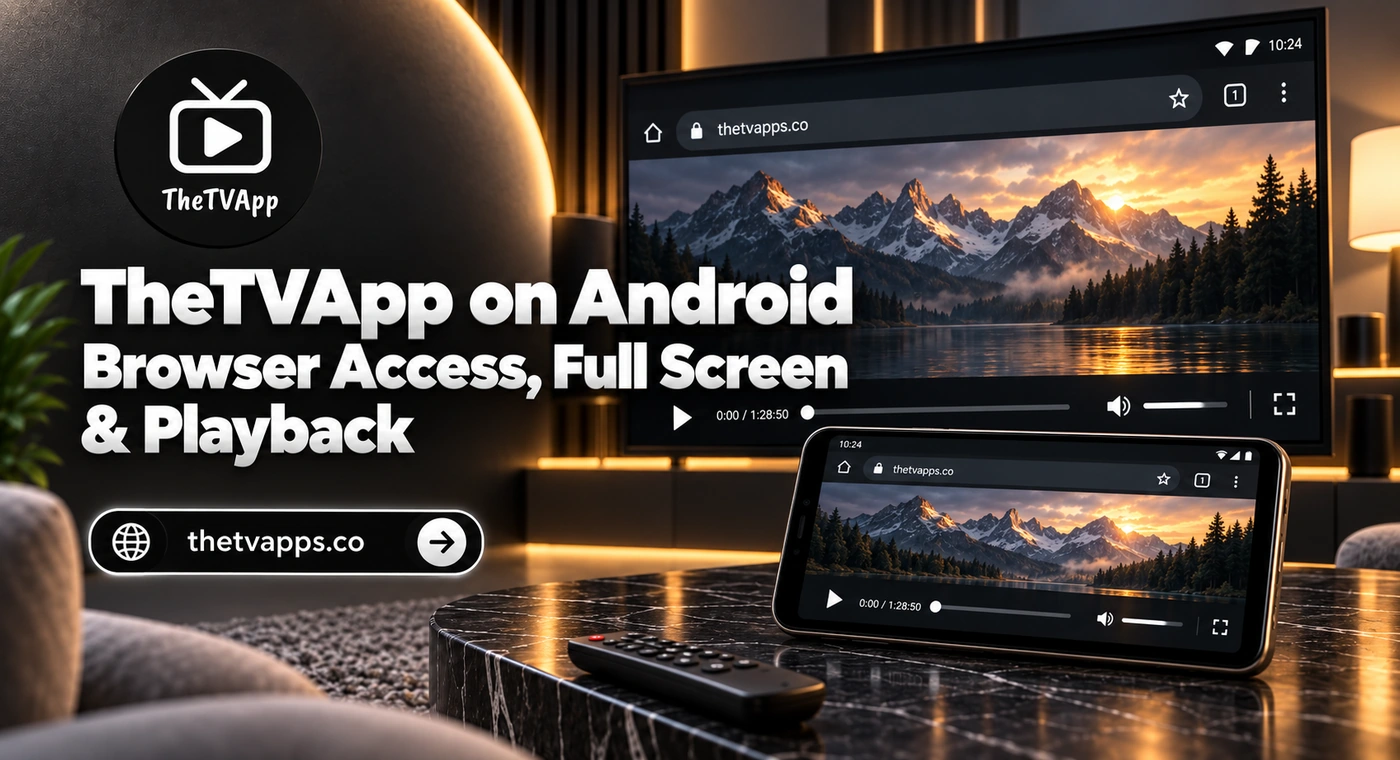
TheTVApp on Android – Browser Access, Full Screen & Playback
Android gives you several ways to watch online video, but browser playback can still behave differently from an installed app. A stream may open correctly on one phone, remain cropped on another, or keep buffering when the device switches between Wi-Fi and mobile data. For TVApp on Android, Chrome is a practical starting point because it supports common web video features and gives you clear controls for JavaScript, site data, and full-screen viewing. The exact menus can vary between Android versions and phone brands, so focus on what you see on your device.
Open TheTVApp in a Mobile Browser
Use the Intended Website Address
Open Chrome or another updated Android browser and enter the website address manually. If a link arrives through a social media app, check the address after the page opens. Some links may pass through another page before reaching the viewing destination. The informational site and an external player can have different loading behavior. If the page changes address after you select a channel, troubleshoot the page where the video actually appears.
Choose a Category Before Starting Playback
You can browse the TheTVApp Sports page for live sports categories or visit the movies and entertainment page for other programming. Tap the channel or event once, then wait for the player to load. Repeated taps can open extra tabs or bring up unrelated prompts, especially on pages designed for desktop screens. A listing that opens does not automatically mean that every source is active. Test picture and sound before settling on a channel.
Make the Android Screen Easier to Watch
Small controls can be difficult to use in portrait mode. Once playback begins, adjust the screen rather than zooming the entire webpage.
Turn the Phone Sideways
Enable auto-rotate from Quick Settings, then rotate the device into landscape mode. If the screen stays upright, auto-rotate may be locked or the player may not support rotation. Test rotation on another website if you are unsure whether the issue is Android or the video player. Some players remain portrait even when the rest of the browser rotates normally.
Use the Player’s Full-Screen Control
Tap the video to reveal its controls and look for the full-screen icon. Select it only after the video has started, because some players hide the control while loading. If the full-screen button is missing, the player may not offer that feature in the mobile layout. Browser zoom or pinch gestures can enlarge the page, but they do not create a true full-screen mode. Exit full screen once and test again if the picture becomes cropped or the navigation bar refuses to disappear.
Avoid Accidental Screen Locking
Android may dim or lock the display when you stop touching it. Keep the device connected to power for longer viewing sessions and check the phone’s screen timeout if playback stops when the screen turns off. This is separate from a stream ending. If the video stops while the screen remains active, investigate the player or connection instead.
When TVApp Playback Does Not Start
The symptom matters. A blank player, endless loading, and immediate stopping can come from different causes.
| What you see | First check |
|---|---|
| Page will not open | Compare another website and connection |
| Player stays blank | Test another channel or browser |
| Video starts and pauses | Check network stability and quality |
| Sound works but picture is missing | Exit full screen and try another feed |
| Playback stops after leaving Chrome | Check whether the player supports background use |
Test Another Channel
Open another listing using the same browser and connection. The TheTVApp News page gives you a different category for comparison. If news playback works while one sports stream stays blank, the problem may be limited to that feed. Avoid resetting Android settings when other channels are playing normally.
Check Whether the Event Has Started
Sports listings can appear before their scheduled start time. Confirm the event time and the time zone shown on the page. For example, a game scheduled for 8 p.m. Eastern begins at 5 p.m. Pacific. A viewer checking at the wrong local time may mistake an inactive pre-event page for a broken player.
Review Chrome Settings on Android
Check JavaScript
Some web players need JavaScript to load their controls and video elements. In Chrome, open the menu, choose Settings, select Site settings, then review JavaScript. If JavaScript was disabled, enable it for the intended site and reload the page. Do not approve unrelated permissions simply because the player is not working.
Try an Incognito Tab
Open a new Incognito tab and visit the same page. This gives you a useful comparison with a fresh browsing session. If playback works there, stored site data or a browser setting may be affecting the normal tab. If it fails in both sessions, investigate the channel, connection, or device instead. Incognito mode does not identify the exact cause. Change one setting at a time after the comparison.
Update Chrome
Open the Play Store and check whether Chrome has a pending update. Older browser versions can handle video pages differently from current releases. After updating, return to the page and reload it. Test the same channel so the comparison remains useful.
Clear Cache and Cookies Carefully
Stored browser data can affect page loading, formatting, and playback. Consider clearing it after testing another browser or Incognito mode. In Chrome, open the menu, choose Delete browsing data, select a suitable time range, and review the items before confirming. Cached files and site data are usually the relevant options. Clearing cookies can remove preferences or sign you out of some websites. It will not restore a feed that is unavailable at the source.
Improve Playback on Mobile Data or Wi-Fi
Compare the Two Connections
If the stream works on Wi-Fi but pauses on mobile data, check signal strength and data-saving settings. If it works on mobile data but not Wi-Fi, investigate the home network. Keep video tests short when using a limited data plan. Live streaming uses more data than opening a text page.
Lower Quality When Available
If the player offers quality controls, try a lower resolution when the picture repeatedly pauses. A stable 480p stream may be easier to watch than a higher-quality feed that stops every few seconds. Not every player provides manual quality selection. Do not install an unfamiliar extension or APK to add a setting that the player does not show.
Add a Shortcut Without Installing an APK
Android browsers may let you add a website shortcut to the Home Screen. This can make access faster, but the shortcut still opens a website. It does not turn the page into a verified native application. Be cautious of pop-ups claiming that an APK is required for basic browser viewing. If you are comparing browser and app behavior, the TheTVApp not working page covers broader website, browser, and stream checks.
Frequently Asked Questions
Conclusion
Using TVApp on Android usually starts with an updated browser, a stable connection, and the correct viewing address. Once the player loads, landscape mode and full screen can make the experience more comfortable. If playback fails, compare another channel, browser, and connection before clearing site data. That process helps show whether the problem belongs to your Android setup or one unavailable stream.