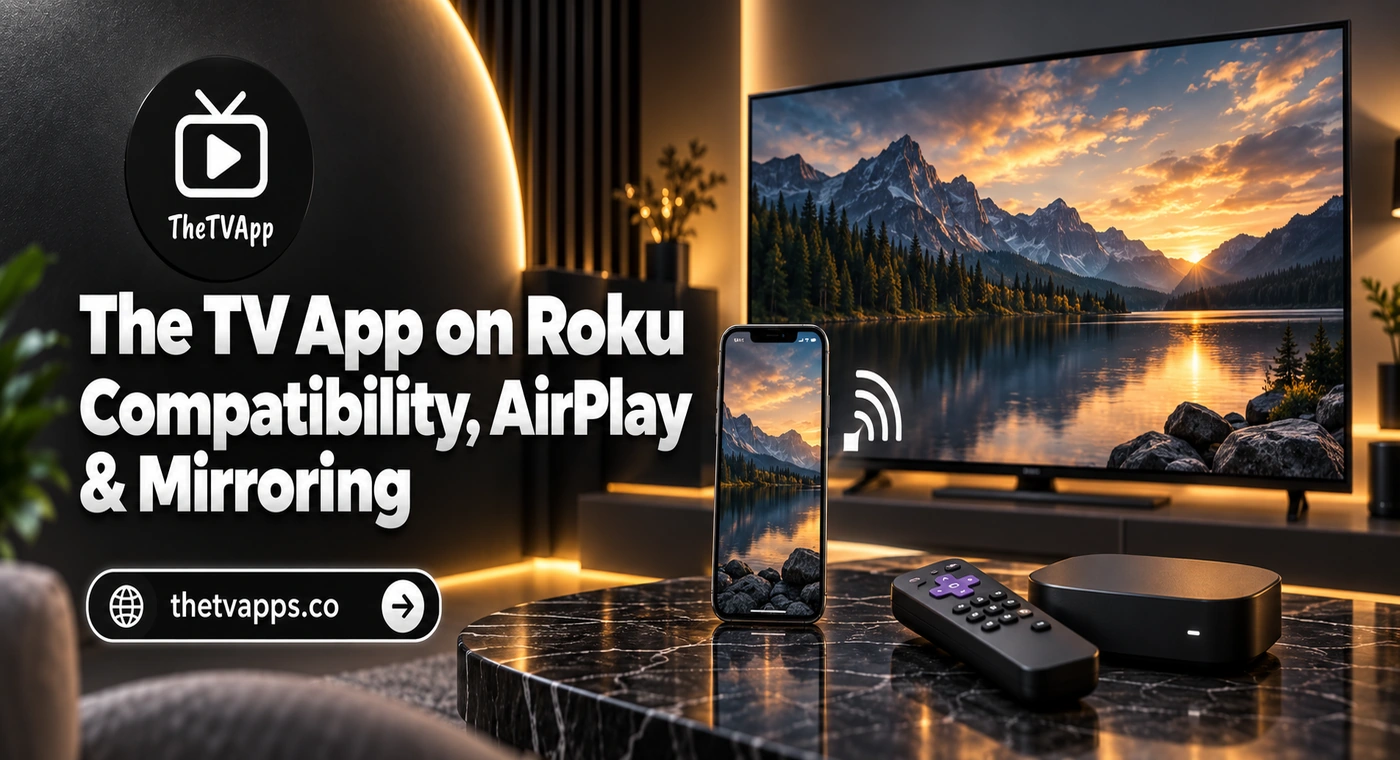
The TV App on Roku: Compatibility, AirPlay & Mirroring
Searching for TheTVApp on Roku can be confusing. You may find instructions telling you to open a browser, download an APK, or press a Cast button—yet none of those options seems to match what is on your television. Roku does not include a general-purpose web browser. You cannot simply type in the website address as you would on a laptop. A compatible phone or computer may let you display the page through screen mirroring or AirPlay, but the selected video still needs to support that setup.
Before spending time on installation instructions, establish which viewing method your devices can use.
Why TheTVApp Does Not Open Like a Regular Roku App
Roku applications and websites are different things. An application installed from the Roku Streaming Store runs on the device. A website normally needs a browser.
Check the App’s Identity Before Installing
Do not assume that a Roku listing belongs to The TV App because the name or logo looks familiar. Check the publisher and service details, and look for a verifiable connection between the listing and the service you intended to use. Without a confirmed Roku application, browser viewing on another device becomes the relevant option. Also notice where viewing buttons lead. If an informational page sends you to an external player, that destination determines which playback features are available. The original page cannot add Roku support to a separate video service.
Choose the Right Way to Put Video on Your TV
“Casting” and “mirroring” are often used interchangeably. In practice, choosing the wrong control can leave you searching for a Roku that never appears.
| Viewing method | What happens | Main requirement |
|---|---|---|
| Supported app casting | A compatible Roku app handles playback | Support in the relevant apps on both devices |
| Android or Windows screen mirroring | Your device’s screen appears on the television | Compatible mirroring technology |
| Apple AirPlay | Supported media or an Apple device’s screen is shared | Compatible Apple device and Roku |
| Native Roku application | Content plays directly within the installed app | A verified application supporting that service |
A Cast icon inside a browser player is not a promise of Roku compatibility. It may be designed for another receiving system. Screen mirroring has a different limitation: your phone or computer remains involved. What appears on that screen—including notifications—may also appear on the television.
Using an Android Phone With Roku
Some Android phones support Roku-compatible screen mirroring. Others offer a casting feature that uses a different system.
Find Your Phone’s Supported Mirroring Option
On compatible Samsung phones, look for Smart View in the quick settings panel. Other manufacturers may use different names. The name alone is not enough. A Google Pixel phone’s casting option, for example, should not be assumed to provide the same Roku-compatible mirroring function. Check the phone model’s capabilities before installing another app. Downloading a tool does not necessarily add support that the device lacks.
Connect First, Then Test the Video
With a compatible phone:
- Open its screen-mirroring control.
- Select your Roku from the available devices.
- Approve the connection on the television if prompted.
- Confirm that the phone’s screen appears.
- Open the intended viewing page and start playback.
Test ordinary screen movement before the stream. If menus appear on the TV but the video turns black, mirroring has connected, yet that particular playback setup is still not working. Repeatedly reconnecting may not change that result.
Using an iPhone or iPad Through AirPlay
For Apple devices, AirPlay is the option to investigate. Support depends on the Roku model and its software.
Check the Roku Settings
- Find the model and software information under Settings → System → About.
- On a compatible device, open Settings → Apple AirPlay and HomeKit and confirm that AirPlay is on. Connect the iPhone or iPad and Roku to the same wireless network.
- If the AirPlay menu is missing, check compatibility before assuming the device needs a reset.
Try the Available Sharing Method
When the video player provides a supported AirPlay control, select your Roku destination. Alternatively, use the Apple device’s Screen Mirroring control to test sharing the screen. Follow any pairing instructions displayed on the television. A useful first test is a short piece of content you already know supports the chosen method. If that works but the browser stream does not, you have narrowed the problem without changing your entire network setup.
Make Sure the Stream Works Before Sharing It
A video that already buffers on your phone will not become reliable simply because you send it to a larger screen. Open the intended feed directly on the phone or computer. Check the picture, audio, and whether playback continues beyond the opening seconds. For an upcoming game, browse the TheTVApp Sports page and confirm the event time. A listing may appear before the broadcast starts. US viewers should also check whether the schedule uses Eastern, Central, Mountain, or Pacific time.
If you prefer to test another category, the news page provides a separate place to browse. A working directory page does not establish that every linked source is active.
Use the Result to Choose Your Next Step
If playback fails on the phone before connecting to Roku, investigate the source or browser first. If playback is smooth on the phone but fails only on the television, focus on the sharing method and receiving device. For example, clearing browser cookies is unlikely to explain much when the video works perfectly until mirroring begins.
Roku Does Not Appear in the Device List
Start with compatibility and the selected sharing method. An unsupported connection method can produce the same empty list as a network problem. For AirPlay, compare the network names on both devices. One may be on a guest network while the other uses the main household network. Check the relevant Roku setting, then restart the devices if needed. Avoid repeated restarts when the phone or Roku model does not support the method you are attempting. A missing destination also does not mean TVApp itself is down. Device discovery happens before you know whether its video can play.
Be Careful With Firestick Instructions Labeled for Roku
Instructions involving Android APK files, Amazon Silk, or Firestick Downloader codes belong to a different platform. They are not ordinary Roku installation steps. A supposed TV app download should have a clear publisher and supported device list. Treat requests to install unfamiliar software or pay to “unlock” a Roku browser cautiously. If no compatible viewing method works, using a supported device or a verified Roku service may be more practical than continuing with an unsupported setup.
Frequently Asked Questions
Conclusion
Using The TV App on Roku starts with checking your devices’ capabilities. Compatible screen mirroring or AirPlay may let you display content from a phone or computer, while ordinary website browsing is not built into Roku. Confirm that the stream works on the sending device, choose the appropriate sharing method, and test picture and sound before the program begins. If the setup remains unsupported, avoid spending time on installation steps meant for another platform.